





A front-of-house team huddles in a bright lobby before opening, leaning in around a phone held by their team lead.
Cue 1 08:45, opening huddle. Five people, one plan, and nobody asking who has the ten o'clock.

Run every shift like opening night.

Every tour, task and shift on one live plan. Your team claims work from their phones, nobody double-books, and you watch the whole day fall into place.

  1. 1Opening huddleTask · LobbyLea
  2. 2Highlights tourTour · EN · 18 guestsMarco
  3. 3School groupTour · DE · 24 guestsOpen
  4. 4Restock the welcome deskTask · Ground floorOpen

2 cues standing by. Press Call the day.Sample day · fictional team

Every crew has a running order.

Museums and tours, front desks, backstage, shop floors. If your people move between jobs all day, Guidely keeps who-does-what in one place everyone trusts.

How a day gets called.

Three calls, from the plan on your screen to the job done on the floor.

  1. Standby

    You publish the work.

    Tours, tasks and shifts go on one schedule in Guidely Manager. Assign someone, or leave work open for the right people to claim. Templates, repeat batches and CSV import save you the retyping.

    Open work shows red until someone takes it.

    A team manager and a colleague smile at a wall planner of colourful cards, a laptop open on the desk beside them.
  2. Go

    Your team claims it.

    Staff see open work on their phones and take what fits. Each job gets exactly one owner. Where you set them up, claims are checked against languages, qualifications and shifts, and clashes with their own work are flagged.

    First to claim gets it. Nobody else can take the same job.

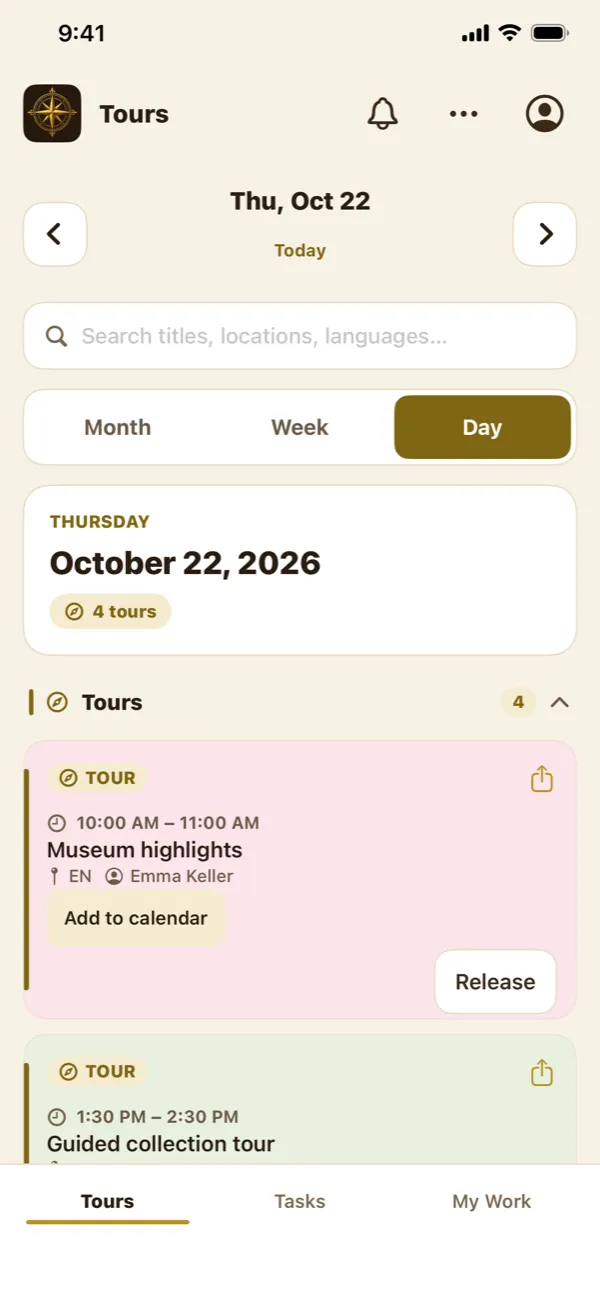
    The Guidely app's Tours screen for one day, with open tours showing a Claim button and an assigned tour showing Release.
  3. Clear

    Hand over, wrap up, hear from guests.

    Can't make it? Offer the job to a colleague, and it stays yours until they accept. Mark work complete, and after a tour, show guests a QR code for a quick rating.

    The handover only moves once a colleague says yes.

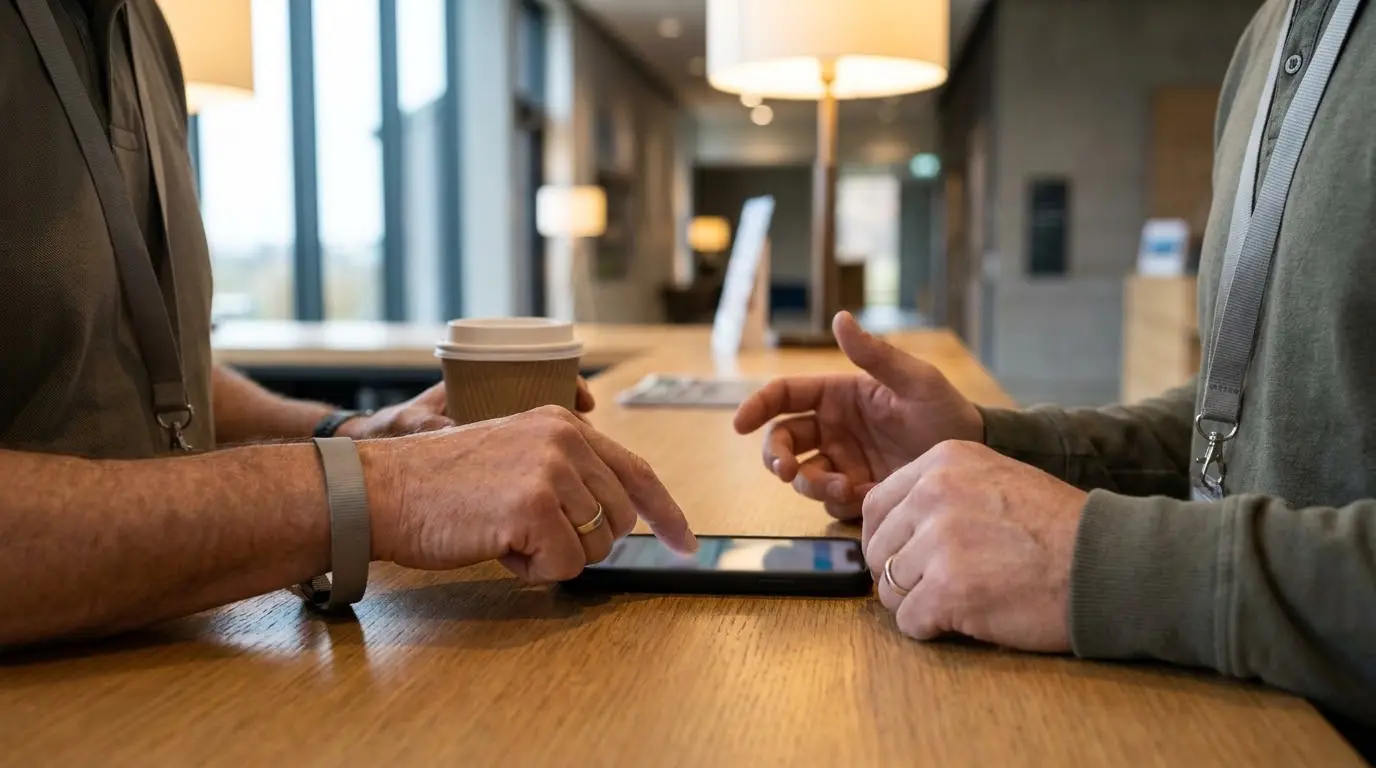
    Close-up of two people's hands over a phone at a visitor desk, one tapping to accept while the other holds a coffee.

Two scripts. One show.

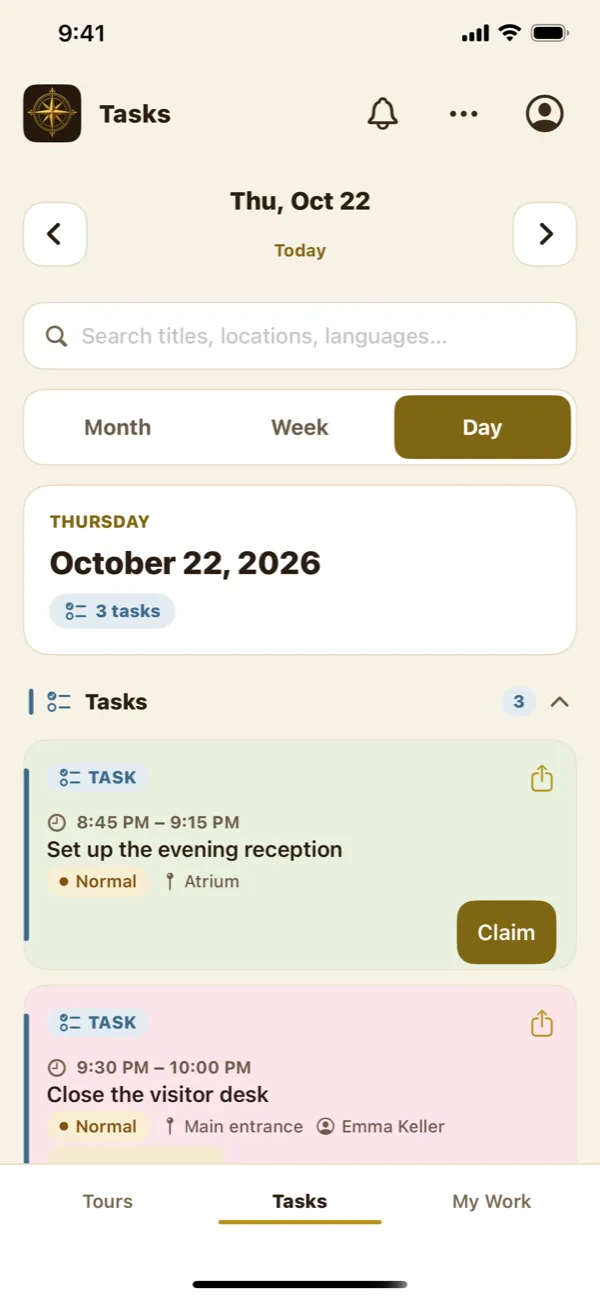
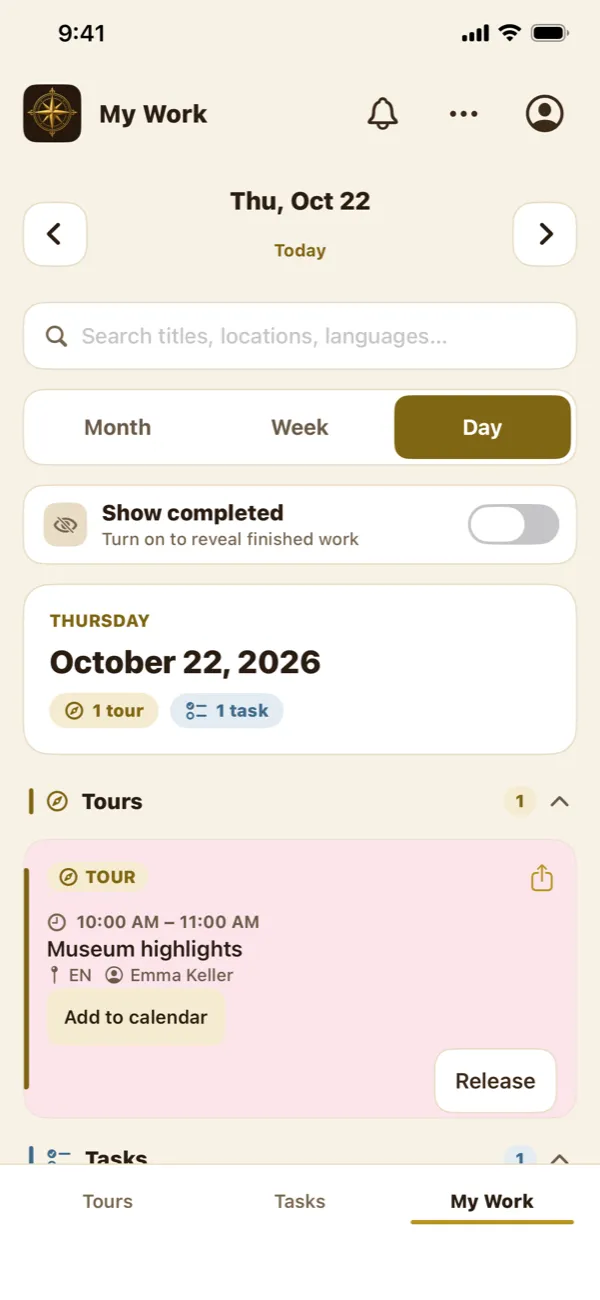
On their phones. Tours, Tasks and My Work, in day, week and month views. Claim, release, hand over, add to calendar, get the update.

On your desk. Guidely Manager: the whole schedule, coverage at a glance, staff, qualifications and shifts, and a history of every change.

Screens from the current app with fictional demonstration data.

Places, please.

Guidely is in public beta on iPhone and Android. Install it now. It's listed as Guidely Compass in TestFlight.

Sign-in is by invitation, so every account belongs to a real team. On a team already? Your manager adds you. Running one? Tell us about it and we'll set up your team space.

QR code linking to the Guidely public beta on TestFlight.

iPhone

Install TestFlight, then join the beta.

Join the iPhone beta
QR code linking to Guidely on Google Play.

Android

Open the listing and join the beta.

Get it on Google Play

The full rider.

Everything Guidely does today, for the people doing the work and the people planning it. Open a category for the details.

The Guidely app for the people doing the work

Find your next job, keep your commitments clear and stay connected when plans change.

6 feature categories
Your day, in one place
  • Tours and tasks

    Browse available tours and operational tasks in dedicated views.

  • My Work

    See your own claimed assignments together, with an option to show completed work.

  • Flexible calendars

    Move between day, week and month views, jump to today and browse other dates.

  • Search and find

    Search work by title, description, location, language or tour type; see dated and undated items.

  • Clear work details

    See schedules, locations, descriptions, tour language and type, expected group size, task priority and required role.

Take ownership and finish work
  • Claim available work

    Pick up eligible tours and tasks, with qualification, shift and scheduling checks where applicable.

  • Release an assignment

    Make work available again when you can no longer take it.

  • Complete your work

    Mark your own tours and tasks complete and keep a record in My Work.

  • Recognise the status

    Distinguish available, claimed and completed work, and spot urgent tasks.

Hand over with confidence
  • Request a handover

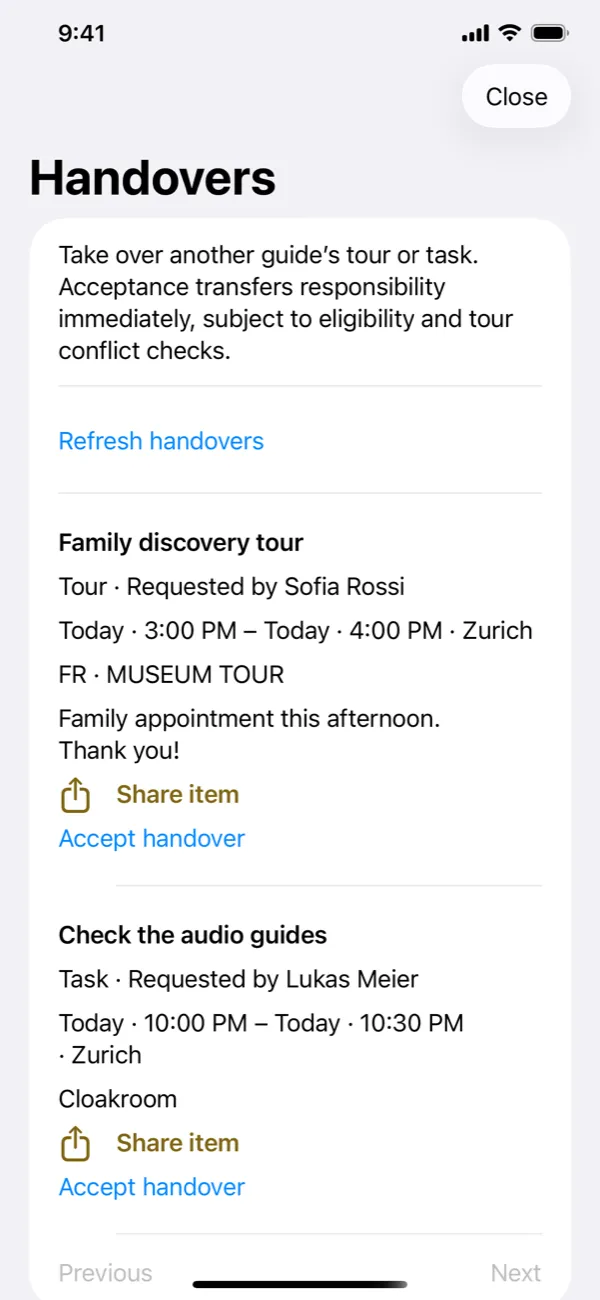
    Offer an assigned tour or task to eligible colleagues, with an optional note.

  • Browse handover requests

    Use the handover inbox to review the owner, schedule, location and requirements.

  • Accept a handover

    Confirm the transfer after eligibility and scheduling checks.

  • Stay responsible until accepted

    Ownership stays with the original person until a colleague accepts; pending requests can be withdrawn.

Share work and connect your calendar
  • Share work links

    Share a permanent link to a tour or task so colleagues can open its details after signing in.

  • One-off calendar export

    Add a dated assignment to your device calendar or download an iCalendar file.

  • Calendar subscriptions

    Subscribe to your assigned work in Apple Calendar, Google Calendar or Outlook. Changes appear when your calendar provider refreshes.

  • Private calendar controls

    Replace or revoke your subscription link from your account. Sync is read-only; one-off exports remain separate copies.

Stay informed when plans change
  • Assignment inbox

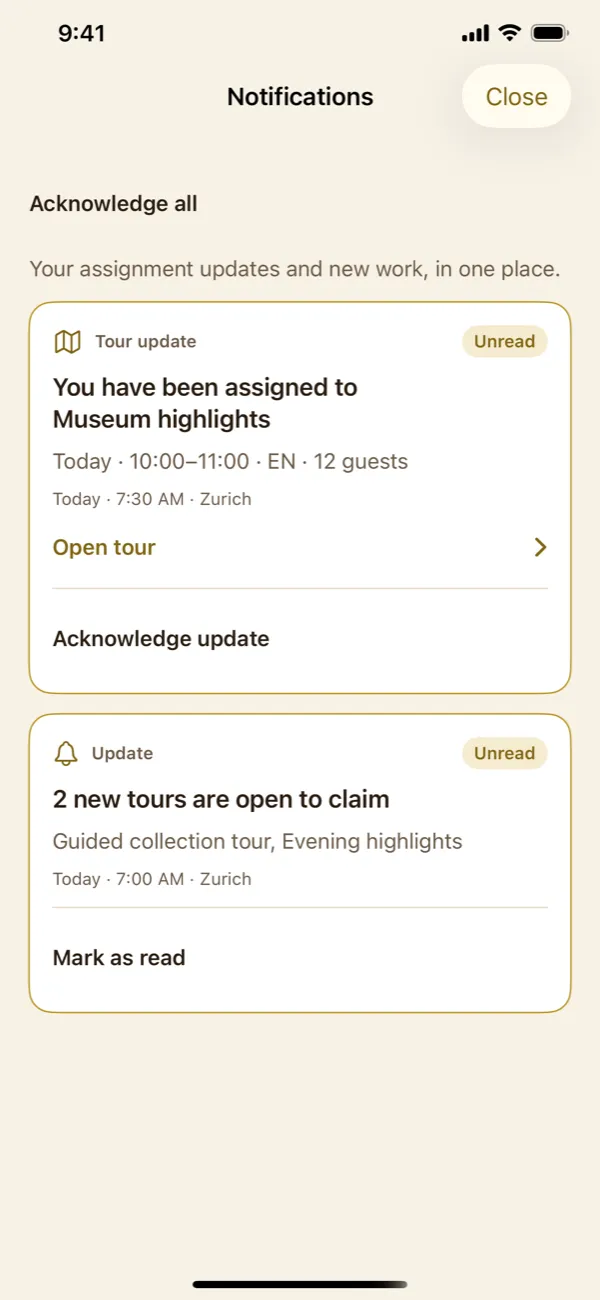
    Read assignment updates and acknowledge notices that require confirmation.

  • New-work summaries

    Receive grouped announcements when tours or tasks become available.

  • Email updates

    Receive assignment and available-work emails through the configured email service.

  • Mobile push support

    Enable or disable device notifications, with reminders for unacknowledged assignments. Requires a supported mobile build, permission and push setup.

Accounts and visitor feedback
  • Account access

    Sign up and sign in with email and password, verify your email and recover a forgotten password.

  • Account details

    View your identity and role, manage calendar and notification settings, and sign out.

  • Completed-tour feedback

    Show a QR code after a completed tour so visitors can leave a 1–5 rating and optional comment.

  • Web and mobile clients

    Staff clients are implemented for web, iOS and Android. The supported devices, app versions and rollout are agreed during onboarding.


Guidely Manager for the people planning the day

Organise work, match it to your team and see what needs your attention.

6 feature categories
Plan and monitor the schedule
  • Day, week and month views

    Navigate the tour schedule, jump to a date or today, and open a day from the monthly view.

  • Search and focused filters

    Find tours by text, status, language, tour type or guide, including unassigned work.

  • Coverage at a glance

    See scheduled tour totals and assigned-versus-scheduled coverage; open the work behind the numbers.

  • Feedback overview

    See the number of participant responses and average tour rating.

  • Detailed tour records

    Review timing, language, type, group size, ownership, status and associated visitor feedback.

Create, assign and adjust tours
  • Create and edit tours

    Set the title, tour type, language, start and end time, and expected guest count.

  • Assign or reassign guides

    Choose a guide for a tour or leave it open for eligible staff to claim.

  • Check the fit

    Use language, tour qualifications, active profile, shift coverage and conflicting-tour checks to support assignment.

  • Reschedule and cancel

    Update tour times or cancel a tour with a reason that the assigned guide can see.

Save time on repeat planning
  • Reusable tour templates

    Create, update and delete templates with a title, type, language, duration and expected group size.

  • Daily and weekly tour batches

    Generate a finite series of recurring tour dates and preview the occurrences before creation.

  • Review before creating

    Check validation results before confirming a batch; edit individual tours after creation.

  • CSV import and export

    Import new tours from CSV and export the schedule. Imports create tours rather than updating existing bookings.

Manage people and daily tasks
  • Staff directory

    Search profiles and filter active, inactive or unconfigured staff.

  • Qualifications and shifts

    Maintain guide languages, qualified tour types and upcoming shifts, with checks against affected assignments.

  • Active profile controls

    Activate or deactivate profiles to control their eligibility for work.

  • Create and edit tasks

    Set a title, description, location, optional due date and low, normal or urgent priority.

  • Assign task ownership

    Search the staff directory to assign tasks, or leave them open for staff to pick up.

  • Task overview

    Search and filter open, claimed, urgent and completed tasks; release an assignment by reopening the task.

Follow changes and acknowledgements
  • Acknowledgement tracking

    See which assignment notices are awaiting confirmation and which staff have acknowledged.

  • Activity history

    Review recorded changes to work and ownership, including handover requests, transfers and withdrawals.

  • Manager work updates

    Receive notifications and email updates for claims, releases and cancellations when the notification service is configured.

  • Searchable operations views

    Use filters, pagination and refresh controls across staff, tasks, acknowledgements, history and feedback.

  • Restricted manager access

    Keep management controls in a separate workspace, available to approved manager and administrator accounts.

Collect and review visitor feedback
  • Ratings and comments

    Read 1–5 ratings and optional visitor comments associated with completed tours.

  • Feedback filters

    Find pending, flagged, included and excluded reviews.

  • Suspicious-response flags

    Identify feedback flagged by automated abuse checks for manual review.

  • Auditable moderation

    Include or exclude a review from the average with an internal reason. Reviews are retained and moderation can be reversed.

  • Time-limited review access

    Visitor feedback uses a limited-time link after tour completion, with duplicate-submission and rate controls.

Start with one real week.

No big rollout. Pick a team and a real stretch of work, run it in Guidely, and judge it on what changes.

Two colleagues bump fists on a shop floor at shift change while an older colleague smiles beside them.

One business subscription covers both sides of the team: the manager workspace and the staff app. Onboarding and custom work are scoped separately.

  1. Day 1

    Show us your day

    Talk through your team, your work and the parts that take too much effort.

  2. Week 1

    Agree the right setup

    Define your modules, onboarding, pilot terms and subscription proposal.

  3. After

    Measure what improves

    Review scheduling time, assignment coverage and visibility of completed work.

Glad you asked.

Still have a question? Email us directly.

Is Guidely only for tour operators?

No. We can explore a task-focused setup for teams managing day-to-day operations, a tour-focused setup for guides, or both. Your pilot defines the configuration and any adaptations required.

Can I try the app right now?

Yes. The iPhone and Android apps are in public beta: install them from TestFlight or Google Play using the links on this page. Sign-in is by invitation from your team's manager, so to look around with your own team, tell us about it and we'll set up a team space.

What do managers and staff use?

Managers use Guidely Manager to plan and oversee work. Staff use the Guidely app to see assignments, find available work and update their work status. Device and rollout requirements are confirmed during onboarding.

Can it fit the way we work?

We'll review your terminology, branding, assignment process and locations. Your proposal makes clear what's supported, what needs adapting and what would be custom work.

How much does it cost?

Pricing is proposed around your team, locations and modules. The business subscription covers the manager workspace and staff app. Onboarding, integrations and custom development are scoped separately. All pilot terms are agreed before you start.

Can it connect to our existing tools?

Tell us what you use and which information needs to move between systems. Integrations are assessed individually, with compatibility, scope and cost confirmed before work begins.

A young guide with a lanyard smiles down at her phone on a museum staircase, holding a small stack of visitor tickets.
Final cue Your team, your day, your words. We start by listening.

Tell us about your team.

A few details and we'll reply with a setup that fits your day and what a useful pilot could look like. A conversation first, no commitment.

We use your details only to reply, and they reach the Guidely team by email. See our privacy policy. Or write to iweb3connect@gmail.com.